Praint
Introduction
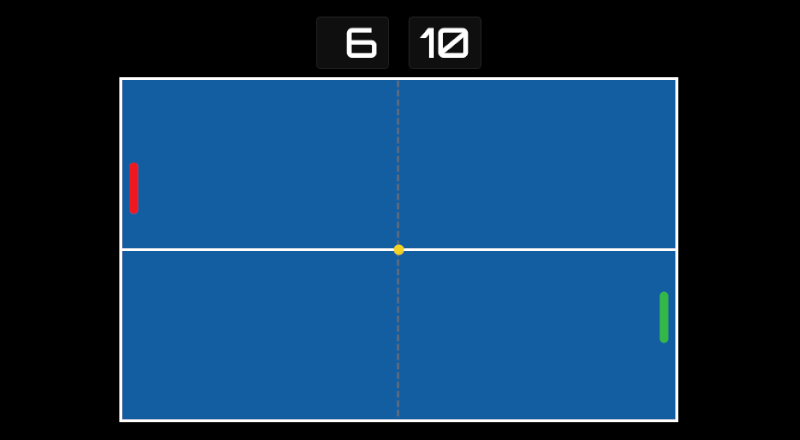
Time to give our game a bit of a makeover with a lick of paint, and have a sweep through some of the code, introducing vectors and some debugging techniques for collisions.
Scope
| Description | |
|---|---|
| Processing | Refreshing the visuals — new shapes, colours, and a dedicated Surface class. |
| Game | Adding a win condition (first to 10 points) and a space bar restart mechanic. |
| Code | Refactoring — consistent use of this, removing private, simplifying and tidying. |
Learning
| Description | |
|---|---|
| Processing Graphics | How to use ellipseMode(), strokeCap(), strokeWeight(), circle(), rect(), and line() to draw styled game objects. |
PVector |
How to replace separate x/y and directional properties with Processing’s PVector class for cleaner position and velocity handling. |
| Collision Detection | How to use horizontal and vertical distance calculations for simplified, player-agnostic collision detection. |
| Debugging Techniques | How to use debug flags, point markers, and frame snapshots to diagnose and fix collision issues. |
Getting Started
Recommended
I recommend that you go through the previous posts for this project, although completing the Arduino part of the project is not essential.
The Code
Processing
What’s New
First thing I wanted to do was to separate the table and the Scoreboard, however I could not create a new class called Table, as this is already part of the Processing language, so having had a look around at table tennis terminology, I saw Playing Surface mentioned, so Surface it is…
Note: If a variable / class or method you are implementing changes colour in the editor, the chances are you are using a reserved word.
One of the most challenging parts of this simple game is collisions, so I created some features to assist the debugging of this; further down, I will go into more detail on these. One of the new files contains flags to control what to debug.
| File | Description |
|---|---|
| Surface | Class to encapsulate the playing surface. |
| Debug | Debugging options. |
What’s Changed
As well as changing the colour and shape of the game objects, I also had a sweep or two through the code in general, e.g. consistent use of this, so it is clear when referring to class properties, removing use of private, as not really applicable in Processing, and a bit of refactoring, moving code around, simplifying, and removing what is not needed.
| File | Changes |
|---|---|
| pronguino | Implemented Surface and Debug. Added logic to end the game. Added logic to restart game. |
| Ball | Added vectors for position and direction. Changed shape. Added colour. Improved collision functions. Added debug method. |
| Constants | Added SCORE_MAX. Added KEY_SPACE. |
| Net | Added colour. |
| Options | Added colour options. Added debug toggle. |
| Paddle | Added vectors for position and direction. Changed shape. Added colour. Improved collision functions. Added debug method. |
| Scoreboard | Separated from table. Changed font. Added ‘board’ |
Play
Have a play, first to 10 is the winner, hit space to restart .. or watch 43 seconds of nail-biting play below …
Graphics
Let’s have a look at some of the shape methods being used to draw the game objects in this version of Pronguino…
Surface
The strokeWeight() and stroke() will determine the thickness and colour of both the surface border and the service rule line(), there is no need to set this before each, unless a different thickness or colour is required. The fill() method will determine the fill colour of the subsequently drawn shape, in this case a rectangle using the rect() method.
// Line Width & Colour
strokeWeight(this.lineWidth);
stroke(#ffffff);

// Surface
fill(#135da1);
rect(this.x, this.y, this.w, this.h);

// Service Rule Line
line(this.x, this.y+(this.h/2), this.x+this.w, this.y+(this.h/2));
Paddle
The strokeCap() method determines the style of line endings, in this case ROUNDed.
// Style & Colour
strokeWeight(this.w);
strokeCap(ROUND);
stroke(this.colour);

//Draw
line(this.location.x,this.location.y,this.location.x,this.location.y+this.h);
Ball
Use the ellipseMode() method to set how the circle() parameters are interpreted, in this case RADIUS is used, where x,y will be the centre, and third parameter as the radius.
// x, y = centre, r = radius
ellipseMode(RADIUS);

// Colour
fill(this.colour);
stroke(this.colour);

// Draw
circle(this.location.x, this.location.y, this.radius);
Challenge: I have left a few “magic numbers” lying around, see if you can get these setup in the Options class, and as properties as required.
Vectors
We will look into the use of vectors within the context of this version of Pronguino, there are literally books written just about vectors, but for now we will keep it on point and simple, no need for lab coats and goggles just yet.
In the previous versions of Ball, we had the following properties…
float x;
float y;
...
private int horizontalDirection;
private int verticalDirection;
… which have now been replaced with ..
PVector location;
PVector velocity;
For simplicity, location(x,y) is a replacement for the previous x and y properties, so where I was setting the starting position as…
x = width / 2;
y = (int)random(10, height-10);
.. I now use the set method to assign x and y properties of location…
this.location.set(surface.x+(surface.w/2), surface.y+(surface.h/2));
The real power of vectors come into play on the movement of the ball i.e. instead of writing…
x += ( speed * horizontalDirection );
y += ( speed * verticalDirection );
.. the new version, using the add method and static function mult will simply be…
this.location.add(PVector.mult(this.velocity, this.speed));
Where the previous horizontalDirection and verticalDirection properties have been replaced with velocity(x,y) … the resulting new location would be…
| location | velocity | speed | new location | |||
|---|---|---|---|---|---|---|
| x | y | x | y | x | y | |
| 400.0 | 300.0 | -1.0 | 1.0 | 5.0 | 395.0 | 305.0 |
Learn: Do some further reading on the Processing PVector class, and it’s methods and properties.
Collisions
I have simplified the hits method of Paddle class, removed need to identify the Player, and used a combination of the horizontalDistance and verticalDistance to identify a collision.
boolean hits(Ball ball) {
  float horizontalDistance = abs(this.location.x - ball.location.x);
  float verticalDistance = ball.location.y - this.location.y;
  return  horizontalDistance < (ball.radius + this.w/2) &&
         (verticalDistance > 0 && verticalDistance < this.h);
}
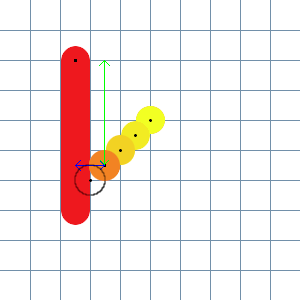
| ball | this (paddle) | horizontalDistance | verticalDistance | horizontalDistance < (ball.radius+this.w/2) |
(verticalDistance>0 && verticalDistance<this.h) |
hits | ||||||
|---|---|---|---|---|---|---|---|---|---|---|---|---|
| x | y | radius | x | y | w | h | c1 | c2 | c1 && c2 | |||
| 50 | 40 | 5 | 25 | 20 | 10 | 50 | 25 | 20 | false | true | false | |
| 45 | 45 | 5 | 25 | 20 | 10 | 50 | 20 | 25 | false | true | false | |
| 40 | 50 | 5 | 25 | 20 | 10 | 50 | 15 | 30 | false | true | false | |
| 35 | 55 | 5 | 25 | 20 | 10 | 50 | 10 | 35 | false | true | false | |
| 30 | 60 | 5 | 25 | 20 | 10 | 50 | 5 | 40 | true | true | true | |
Because ball.move() is called before the player.hits() check, and before ball.display() in the main pronguino file, the collision is detected one frame ahead, leaving the ball displayed at its previous position.
Experiment: In the above example the options.ballSpeed has been set to 5.0, so the math involved is simpler, and where most of the game object co-ords are all dividable by 5.0, the collisions look reasonably smooth, however, I haven’t taken in consideration speed into the calculations of the collision, yet, play around with the speed settings and see what happens.
Debugging
One of the trickiest aspects of developing this game, is getting the collisions right, and as smooth as possible, due to the collision happening so fast, it is difficult to see what is actually happening, and know what to adjust, so I have introduced a few ideas to assist in the debugging of collisions.
Note: When in debug mode, you will see a trail of the ball when it goes off the surface, this is expected, due to snapshots not being captured correctly when the background is redrawn in draw() loop, so it has been disabled during debug.
Options
I have added a flag debug in the Settings which needs to be set to true in order to trigger debug actions, and also added a new class Debug, which includes flags such as…
boolean playerHitsBall;              // Debug option for when the paddle hits the ball
boolean ballPositionAtPlayerPaddle;  // Debug option for when the ball is re-positioned
… which determine areas that require debugging.
Points
In the display() methods of Ball and Paddle, the following code, which, when the relevant flags are set will display a subtle black dot where the centre (x,y) of the ball is, and the starting point of the paddle line, so when a snapshot is taken, it acts as a guide on what adjustments need to be made.
// Debug
if(options.debug && (debug.playerHitsBall || debug.paddleHitsBoundary)) {
  strokeWeight(1);
  stroke(#000000);
  point(this.location.x, this.location.y);
}
Snapshots
In the pronguino file, within the draw() method, you will see the following code…
if (player.hits(ball)) {
    // Debug
    if(options.debug && debug.playerHitsBall) {
        ball.display(true);
        saveFrame("debug/Player("+player.index+")-Paddle"+player.paddle.location+"-Hits-Ball"+ball.location);
    }
...
… where the frame at point of collision will save as an image, with the filename being made from the properties of the relevant objects involved i.e.
Player(1)-Paddle[ 710.0, 335.0, 0.0 ]-Hits-Ball[ 710.0, 380.0, 0.0 ].tif
It will also display the outline of where the ball would be at collision, see the modified code in Ball where it just changes the fill and colour before drawing, if true is passed in…
void display(boolean snapshot) {
  ...
  // Colour
  if(snapshot) {
    noFill();
    stroke(#000000);
  } else { ...
Challenge: Have a go at implementing the debug code for paddleHitsBoundary and ballHitsBoundary options.
Further Reading
- PVector Reference — complete reference for Processing’s vector class, including arithmetic and geometry methods
- Processing Graphics Reference — reference for the drawing functions used to style the game objects
- 2D Transforms Tutorial (Processing) — official tutorial on using 2D transforms for positioning and rotating objects
- 2D Collision Detection (MDN) — overview of bounding box and other 2D collision detection approaches
Conclusion
We now have a much improved, new-look Pronguino — cleaner code, polished visuals, improved distance-based collision detection, and PVector replacing the old separate directional properties. The debugging tools introduced here are genuinely useful when things go wrong with collisions, and worth keeping in mind for future posts. Next up … Servuino to add more components to the circuit and more features to the game.