Pronguino – Client
Introduction
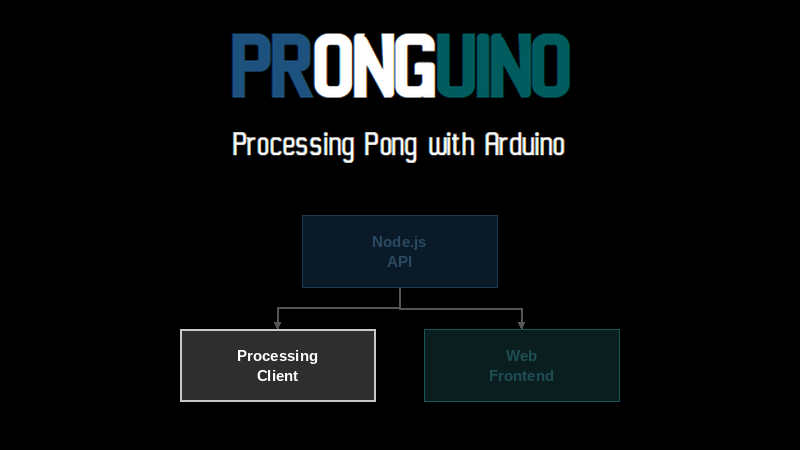
OK, so we have an API up and running — now we are going to make some changes to the Pronguino Processing code to allow for the creation of new games and to update the state and score of the players.
The additions to the Processing code have been built upon Sounduino. Having the Arduino attached is not needed for this part of the project.
Scope
| Description | |
|---|---|
| Processing | Adding an HTTPClient class that wraps the Network library to make POST and PUT requests to the API. |
Learning
| Description | |
|---|---|
| HTTP Requests | How to make POST and PUT requests from Processing using the Network library. |
| JSON Handling | How to build and parse JSON objects in Processing using JSONObject and parseJSONObject. |
| ISO 8601 | How to format date and time values using the ISO 8601 standard. |
| java.time | How to import and use classes from the java.time package in Processing. |
Getting Started
As this will be accessing the API created in Pronguino – API, the server will need to be up and running — just open a terminal or command window to start it up…
nodejs> npm run start
> pronguino-api@1.0.0 start
> nodemon app.js
[nodemon] 2.0.22
[nodemon] to restart at any time, enter `rs`
[nodemon] watching path(s): .
[nodemon] watching extensions: js,mjs,json
[nodemon] starting `node app.js`
listening on port 3000 …
It will also be advantageous to have the games.json file open in your editor so you can see real-time changes to the data as API calls are made. In VS Code you can have both the file open and a terminal running the server at the same time.
The Code
Processing
As with all languages now, there is a host of third-party and contributed libraries, and Processing is no different. In this exercise I am going to use one of its core libraries, Network, and create a class that wraps its Client class and provides methods to make POST and PUT requests to our API. This library is quite low-level and does not know it is accessing an API, so I have also created classes to help build custom requests and parse the responses that can then be easily used by the Game.
What’s New
| File | Description |
|---|---|
| DateTime | Wrapper for some java.time package classes. |
| HTTPClient | Wrapper for the Network library Client. |
| HTTPRequest | Builds an HTTP request. |
| HTTPResponse | Parses an HTTP response. |
Reference: For a list of HTTP response codes the server may return, see the HTTP Response Codes reference page.
What’s Changed
| File | Changes |
|---|---|
| Game | Added game data object. Added create() function to save a new game to the server via HTTPClient. Added update() function to update a game on the server via HTTPClient. |
| Constants | Added HTTP-related constants. |
| Options | Added API Host and Port options. |
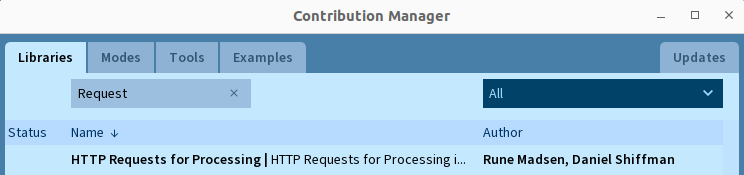
There is a contributed library available that has more functionality than what I have done here. You can install it by opening the Contribution Manager from Sketch → Import Library → Manage Libraries…, filtering by “Request”, selecting HTTP Requests for Processing, and clicking Install…
… you can see the basic documentation, and some usage examples of this library here.
Note: This library is not actively maintained and may not work with newer versions of Processing.
Challenge: Once you have become familiar with how this code is working, have a go at implementing the contributed library HTTP Requests for Processing.
Play
OK, let’s play a game. As soon as you press Play from the main menu, a new game is created with the following code — which creates a JSONObject to build the body of the new game, makes a call to the HTTPClient post method, returns a response, extracts the new id from it, and updates the game’s id which will be used in future calls to update…
void create() {

  // Create player objects
  JSONObject playerOne = new JSONObject()
    .setString("name", players[0].name.trim())
    .setInt("score", players[0].score);
  JSONObject playerTwo = new JSONObject()
    .setString("name", players[1].name.trim())
    .setInt("score", players[1].score);
  JSONObject players = new JSONObject()
    .setJSONObject("1", playerOne)
    .setJSONObject("2", playerTwo);

  // Create game data object
  this.data = new JSONObject()
    .setString("state", Constants.GAME_STATE_TEXT.get(this.state))
    .setString("started", DateTime.ISODateTime())
    .setJSONObject("players", players);

  // POST data to server
  try {
    HTTPResponse response = this.httpClient.post(
      "/games",
      Constants.HTTP_CONTENT_TYPE_JSON,
      this.data.toString()
    );

    // Check status and update game data
    if (response.status.substring(0,3).equals(Constants.HTTP_STATUS_CREATED)) {
      String gameId = parseJSONObject(response.body).getString("id");
      this.data.setString("id", gameId);
    } else {
      throw new Exception(response.status);
    }
  }
  catch (Exception e) {
    // Just print message in console and allow game to continue
    println(e.getMessage());
  }
}
…and if you have the games.json file open, you will see something like the following appended…
"4": {
  "id": "4",
  "players": {
    "1": { "score": 0, "name": "Mario" },
    "2": { "score": 0, "name": "Luigi" }
  },
  "started": "2023-05-01T10:00:00",
  "state": "Serve"
}
…the raw request being sent to the server would look something like the following…
POST /games
Host: localhost:3000
Content-Type: application/json
Content-Length: 193

{
  "players": {
    "1": { "score": 0, "name": "Mario" },
    "2": { "score": 0, "name": "Luigi" }
  },
  "started": "2023-05-01T10:00:00",
  "state": "Serve"
}
…and a raw response looking like this…
HTTP/1.1 201 Created
X-Powered-By: Express
Content-Type: application/json; charset=utf-8
Content-Length: 10
ETag: W/"a-rZhHxGvfGNLCQseNFbcjZe3GjlA"
Date: Mon, 01 May 2023 10:00:00 GMT
Connection: close

{"id":"4"}
As you continue playing you will see the player scores and game state change accordingly…
| Game State | Description |
|---|---|
| Serve | Waiting to serve |
| Started | Ball moving, being hit |
| Ended | One player reaches 10 |
| Cancelled | Stop game midway and exit |
…updated by the following code…
void update() {

  // Update player scores
  this.data.getJSONObject("players").getJSONObject("1")
    .setInt("score", players[0].score);
  this.data.getJSONObject("players").getJSONObject("2")
    .setInt("score", players[1].score);

  // Update state
  this.data.setString("state", Constants.GAME_STATE_TEXT.get(this.state));

  // PUT data to server
  try {
    HTTPResponse response = this.httpClient.put(
      "/games/" + data.getString("id"),
      Constants.HTTP_CONTENT_TYPE_JSON,
      this.data.toString()
    );

    // Check if correct status
    if (!response.status.substring(0,3).equals(Constants.HTTP_STATUS_NO_CONTENT)) {
      throw new Exception(response.status);
    }
  }
  catch (Exception e) {
    // Just print message in console and allow game to continue
    println(e.getMessage());
  }

}
…which is similar in structure, but just updates the required properties of the JSONObject and calls the put method of HTTPClient.
Challenge: If you run the Pronguino game without the server running, you will see in the Console window an error … java.net.ConnectException: Connection refused. See if you can add code to catch this error and maybe set a flag to ignore any future calls to the API, in order to run the game independently if needed. Maybe add to the warnings that show on the menu page i.e. alongside “Controllers not connected”?
Time & Dates
The format used for the started property in the game JSON object is based on ISO 8601. While the time & date functions of Processing are quite limited — returning only integers — we could write our own function to build a formatted date, or, as Processing is Java-based, we can import classes from the java.time package.
In the new DateTime class, I have wrapped these package classes. First, import…
import java.time.LocalDateTime;            // Import the LocalDateTime class
import java.time.format.DateTimeFormatter; // Import the DateTimeFormatter class
…define the format…
private static DateTimeFormatter ISODateTimeFormat =
  DateTimeFormatter.ofPattern("yyyy-MM-dd'T'HH:mm:ss");
…and a method to return the current formatted time…
static String ISODateTime() {
  return LocalDateTime.now().format(ISODateTimeFormat);
}
Note: This format uses local date and time only — it does not include a timezone offset. This is fine for local development, but worth keeping in mind if the data is ever used across different timezones.
Further Reading
- Processing Network Library — reference for the Network library’s
Clientclass used to make HTTP requests from Processing - Processing JSONObject Reference — reference for building and parsing JSON objects in Processing
- java.time Package (Oracle) — official reference for the date and time classes used in the
DateTimewrapper - ISO 8601 (Wikipedia) — overview of the date and time format standard used for the
startedfield in game data - HTTP Requests for Processing (GitHub) — the contributed library mentioned in the challenge section
Conclusion
OK, so now we have our Pronguino game creating and updating game data using an API, which we can use for other purposes.
Next up — we are going to create a relatively simple website using HTML, CSS, and JavaScript that will read the data using the API to show live and previous games.